 Fay Fang
Start from the slot, then choose the edit
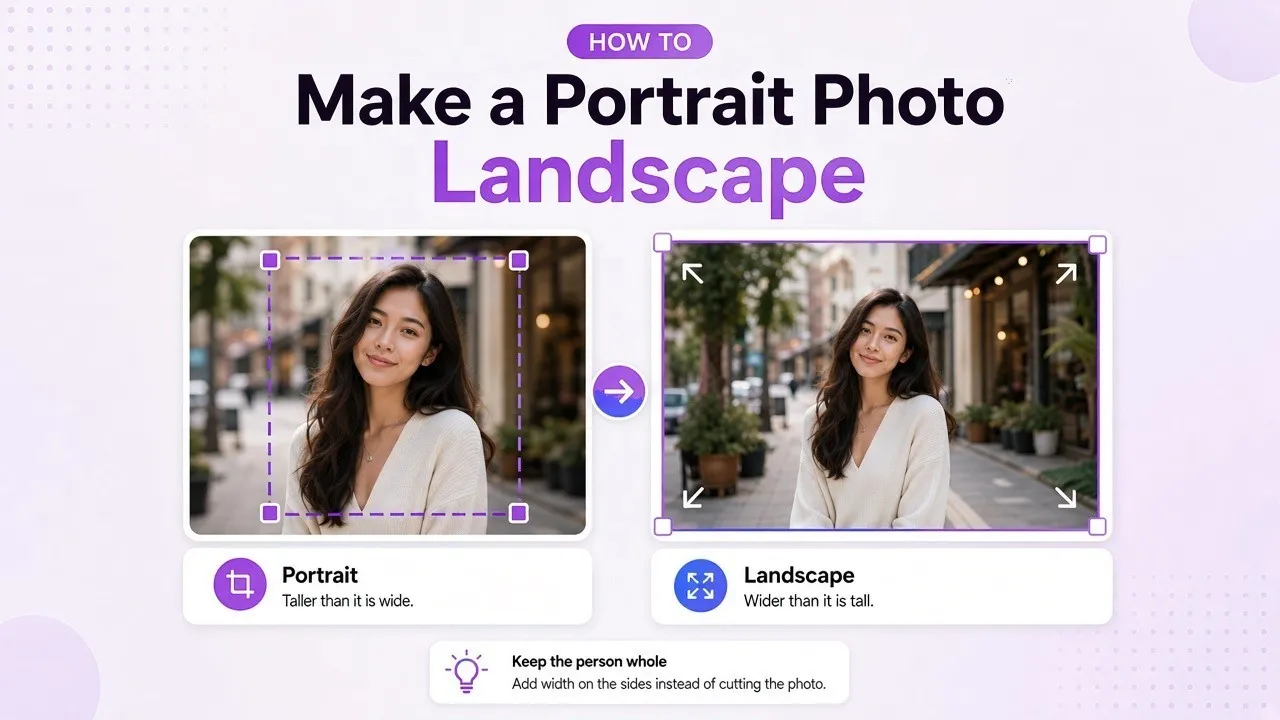
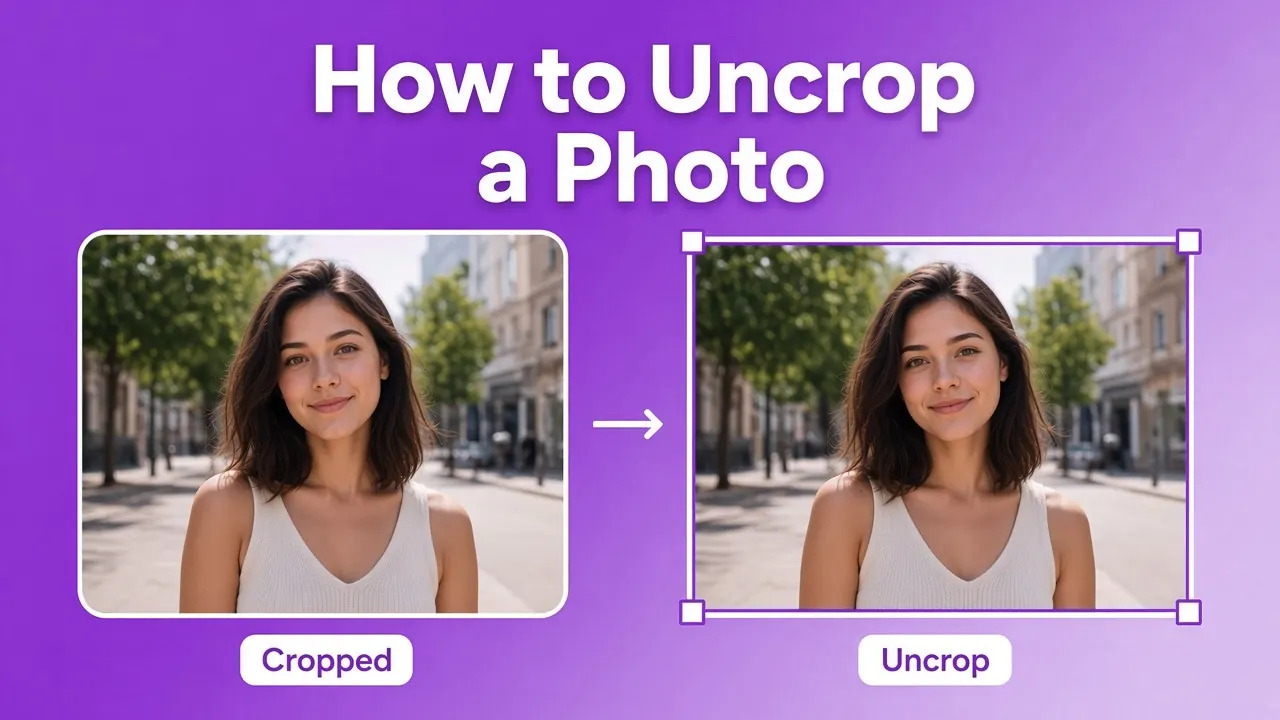
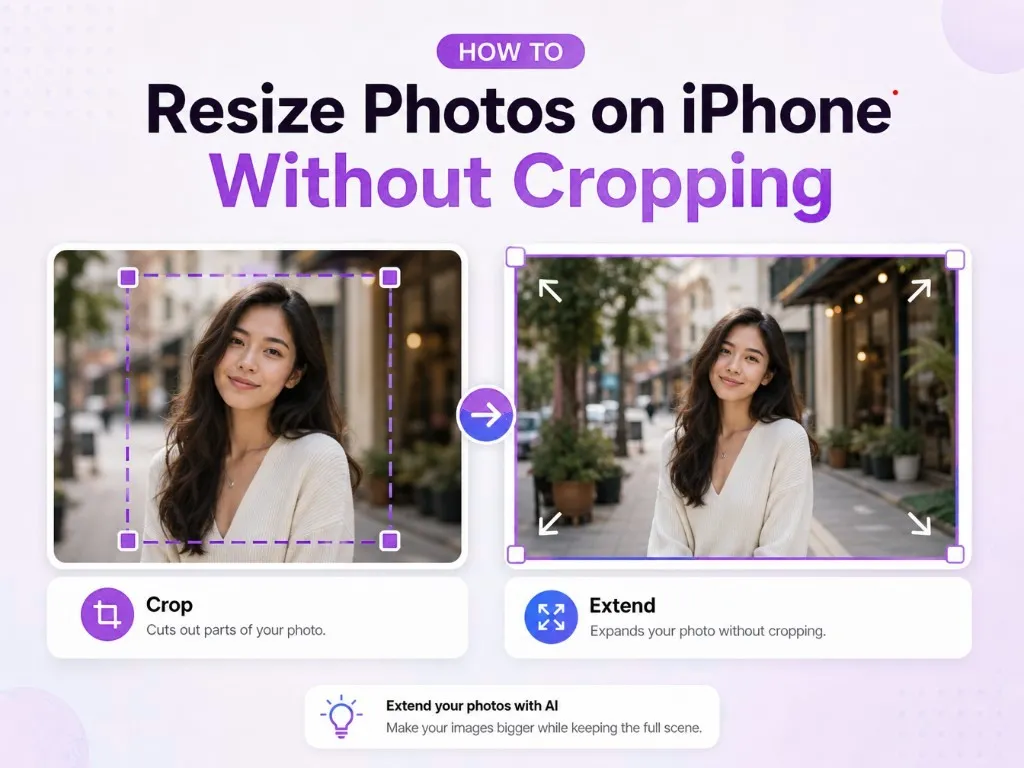
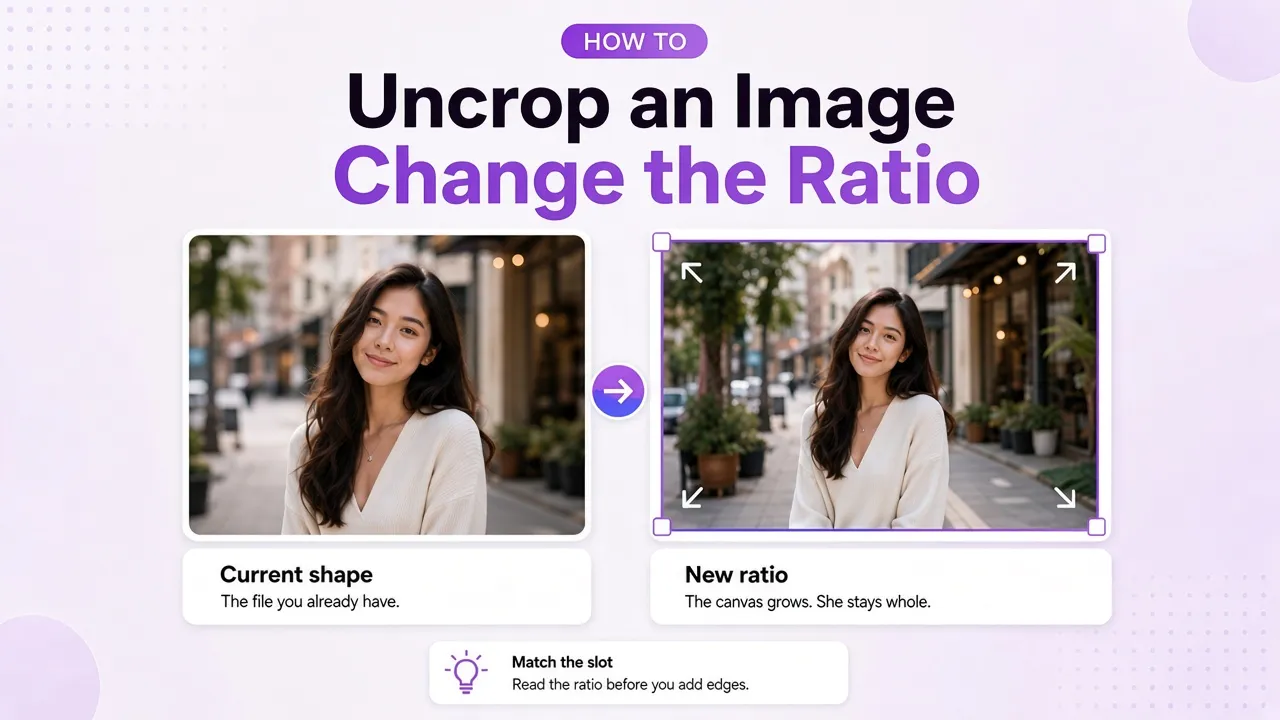
To uncrop an image, add canvas outside the pixels you already have. Changing the aspect ratio of an image without cropping is that same edit when the destination is a different shape. The picture stays whole. The frame gets wider, taller, or both.
A crop does the opposite. It throws pixels away until the remaining band matches the ratio. A fit keeps the picture and leaves the new area empty or flat. An uncrop keeps the picture and asks a model to continue the scene in that new area. People also call the last one outpainting.
Read the slot first. A YouTube video thumbnail, a Shorts thumbnail, and a podcast playlist thumbnail are three different shapes. The file on your desk may already be none of them.
The ratio is a slot, not a filter
YouTube's own thumbnail page tells you the shape to upload. For videos, try 16:9, and the recommended file is 3840 x 2160 pixels, with a minimum width of 640. For Shorts, try 9:16, and the recommended file is 2160 x 3840, with a minimum height of 640. Podcast playlist thumbnails should be 1:1, not 16:9. Those rules are on YouTube's custom thumbnail help.
The same page adds a catch. A vertical video that carries a 16:9 custom thumbnail is replaced by an auto-generated 4:5 thumbnail on the home, explore, and subscription pages. The 16:9 file still shows on the watch feed, in watch history, and off mobile. So "make it 16:9" is the upload rule for a video thumbnail, and it is not the only shape a viewer may see.
Instagram draws a different box, and only for one job. Its help says a Story boost can fail when the aspect ratio is not 9:16 and is not between 4:5 and 1.91:1. That line is about boosting a Story, from Instagram's boost troubleshooting page. It is not a feed-post size chart.
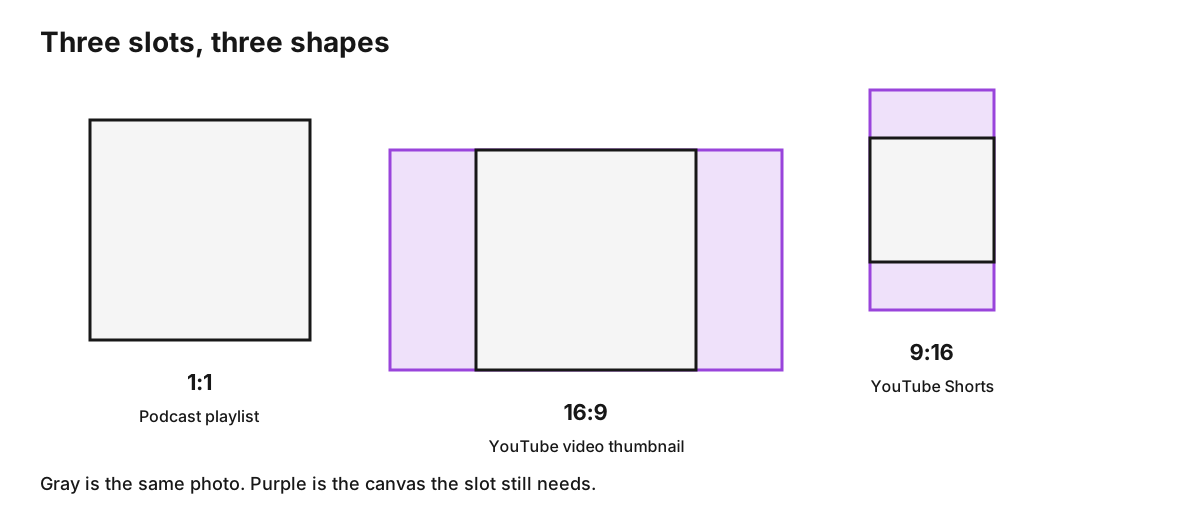
A 3:4 file is not a 4:5 file. A 16:9 file is not a 1.91:1 file. If the slot names a ratio your editor does not list, pick the listed ratio that is closest and then look at the result in the real slot. The editor used here offers 1:1, 4:3, 3:4, 16:9, 9:16, 21:9, and 9:21. It does not offer 4:5 or 1.91:1.
Crop, fit, or uncrop
The ratio names the hole. The edit decides what fills it.
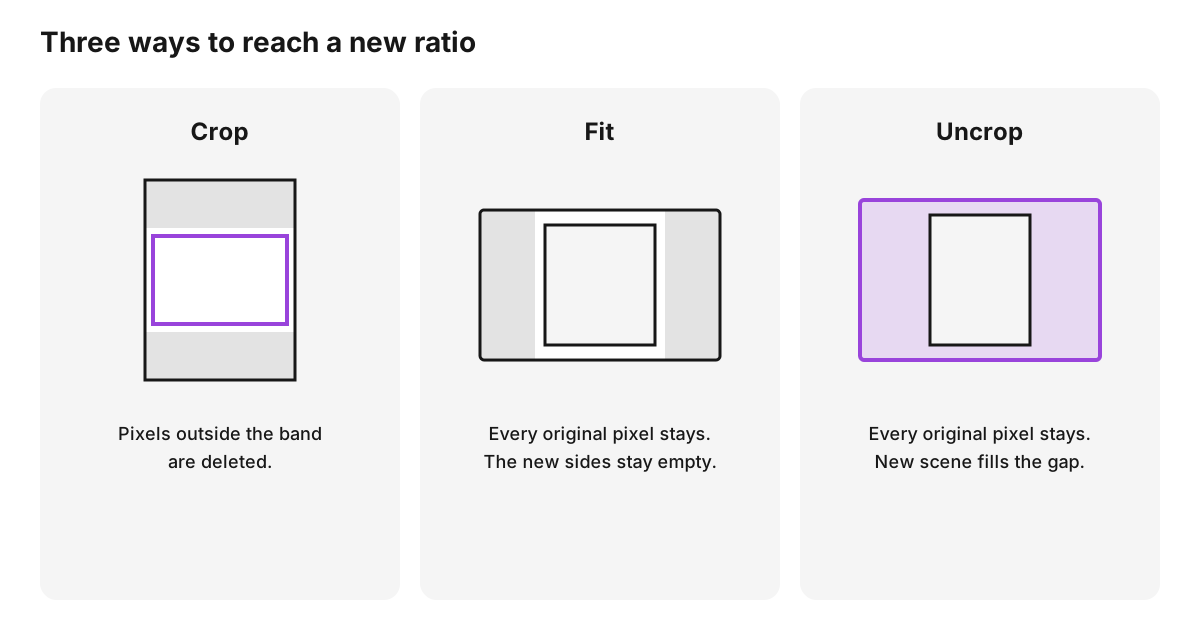
| The slot needs | What the edit does | Use it when |
|---|---|---|
| A matching ratio, and the edges can go | Deletes pixels until the shape matches | Empty wall or sky sits outside the subject |
| The whole picture inside a new shape | Keeps every pixel and leaves the new area empty or flat | The page or player already has a background |
| One continuous photo at the new shape | Keeps every pixel and generates the new edges | Bars would look unfinished and the subject cannot be cut |
Stretching is a separate mistake. It resamples the picture until the width and height match, and a person gets wider or taller. Fit and uncrop leave the person's proportions alone.
Change the aspect ratio of an image without cropping
- Write down the ratio the slot publishes. Use 16:9, 9:16, or 1:1 when the job is a YouTube thumbnail of that type.
- Compare that ratio with the file. A move toward 16:9 needs more width. A move toward 9:16 needs more height. A move toward 1:1 needs whichever side is short.
- If the camera original is still in your library, crop that file to the slot. The cut pixels are still in the original. That path is covered in how to uncrop a photo.
- If this file is all you have, grow the canvas in the direction from step 2. Do not scale the subject to fake the ratio.
- Generate only when the new area has to look like scene. Use the editor to extend the canvas to a new aspect ratio without cropping.
A small ratio step needs a thin new band. A jump from 1:1 to 21:9 needs a wide invented background. Plain walls, sky, and even light are easier. Signs, faces, and repeating patterns are harder.
Check the edges the ratio adds
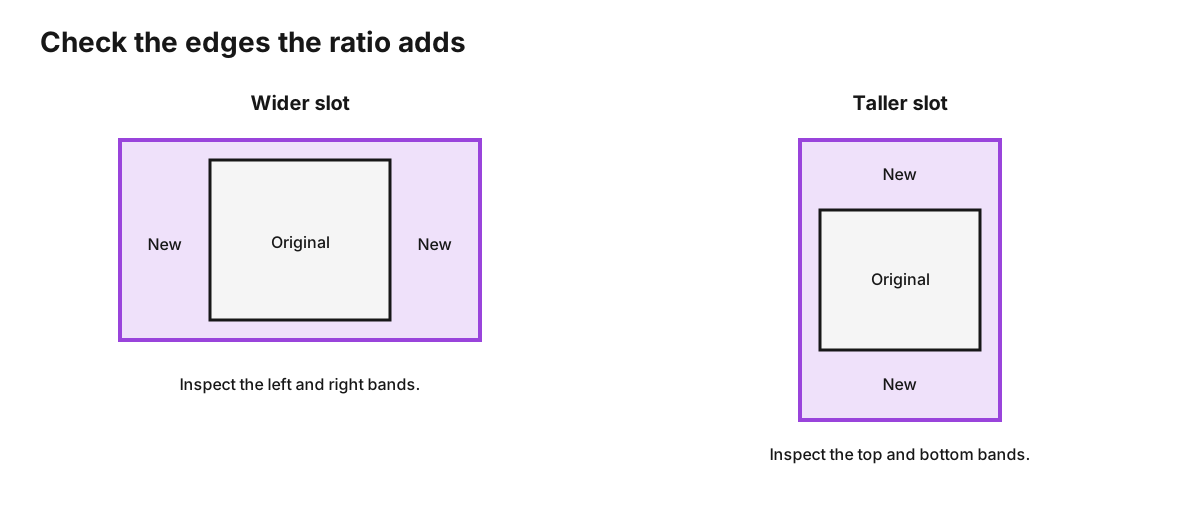
A wider slot adds a left band and a right band. A taller slot adds a top band and a bottom band. Judge those bands. The face in the middle was already in the file.
- Seam. Look for a hard line, a repeated texture, or a sudden blur where the old edge meets the new one.
- Light. One sunny side and one gray side of the same street means the join failed.
- Text. Letters in the new band often break into shapes that are not words.
- Faces and hands. Extra people in the new band are a problem when you wanted the original subject alone.
- Logos and products. Reject a second logo, a changed label, or a warped package edge.
If a band fails, generate again or choose a closer ratio. A 16:9 result that fails the side check is still the wrong file for a YouTube video thumbnail.
FAQs about uncropping an image
How do I change the aspect ratio of an image without cropping?
Keep every original pixel and change the canvas around them. Fit leaves the new area empty or flat. Uncrop fills it with generated scene. Crop and stretch are different edits: one deletes pixels, and the other warps the subject.
Does uncropping bring back the pixels that were cut off?
It continues the scene from the file you upload. The deleted pixels are not stored in that file. If the camera original is still available, crop that original instead of generating the missing edges.
What ratio does YouTube want for a thumbnail?
YouTube asks for 16:9 on a video thumbnail, 9:16 on a Shorts thumbnail, and 1:1 on a podcast playlist thumbnail. It also recommends 3840 x 2160 for videos and 2160 x 3840 for Shorts. A 16:9 thumbnail on a vertical video can still be replaced by an auto-generated 4:5 image on some mobile shelves.
Can every editor output a 4:5 or 1.91:1 file?
No. Those ratios show up in Instagram's Story boost rules. The editor here lists 1:1, 4:3, 3:4, 16:9, 9:16, 21:9, and 9:21. 3:4 is not 4:5, and 16:9 is not 1.91:1. Check the exported file in the slot you are filling.
What should I inspect after the canvas grows?
Inspect the bands the ratio added. Wider frames add left and right. Taller frames add top and bottom. A clean original face does not clear a broken band.