
Zoom In on a Photo and See Every Detail
Get closer to a street sign, a fabric weave or a face at the back of the room. AI rebuilds detail as it enlarges, so the close-up holds up. Log in + credits · 2x or 4x · Up to 10MB
How to Zoom In on a Photo
- Add your photo. Drag it onto the page, click to browse, or paste a copied image. JPG, PNG, WebP and HEIC files up to 10MB are accepted, as long as the short side is at least 64 pixels.
- Choose 2x or 4x. The page shows the final dimensions before you start. 2x doubles the width and height; 4x quadruples them, which turns a 1000-pixel-wide shot into one 4000 pixels wide.
- Run the zoom. Click Zoom In with AI. If you aren't signed in, a pop-up asks you to log in first — guests can't use AI Zoom In. Most photos finish in well under a minute, and you never leave the page.
- Inspect, then save. Drag the before/after slider across the area you care about, check the new size and file weight, and download a PNG or JPG.
Zoom In Photo Examples: Before and After
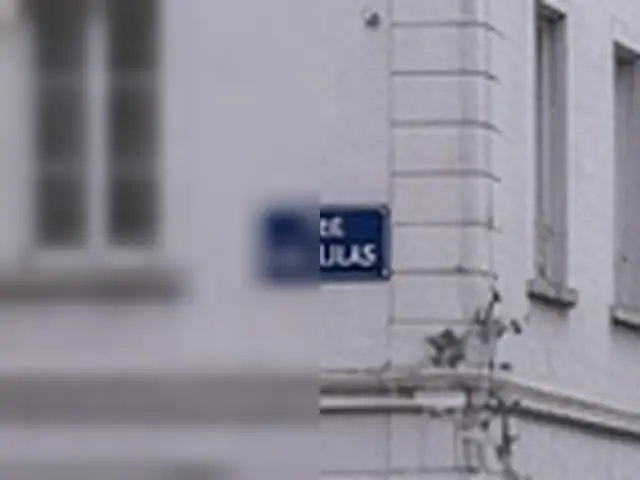 BeforeAfter 4x
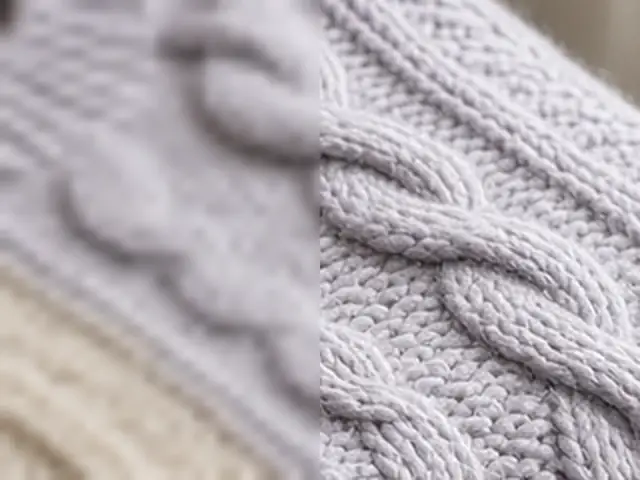 BeforeAfter 2x
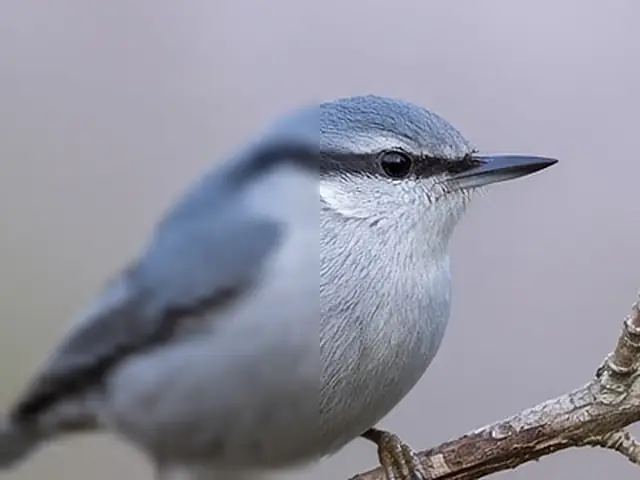 BeforeAfter 4x
Zooming In vs. Upscaling
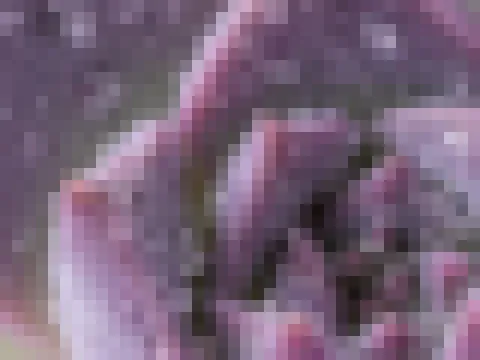 Viewer zoom
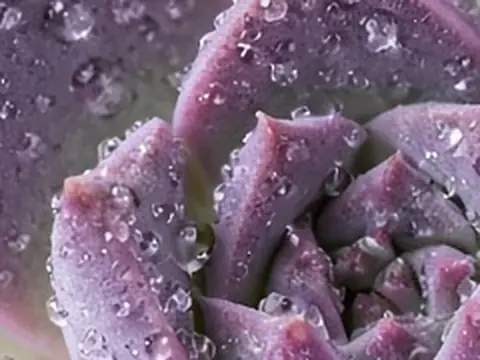 AI upscale · 4x
People use "zoom in" for two different things, and the difference matters if you want to do anything with the result.
Viewer zoom is what happens when you pinch a photo on your phone or press "+" in a photo app. The picture looks bigger on your screen, but the file doesn't change. Each original pixel just gets drawn as a larger square, so the closer you go, the more you see soft edges and blocky stair-steps. Take a screenshot of that zoomed view and you've saved the blur.
Upscaling creates a brand-new file with more pixels in it. A basic upscale (the kind most editors do with "resize image") fills those new pixels by averaging their neighbors, which is smoother than viewer zoom but still looks smeared. An AI upscale predicts what the missing detail most likely looked like, based on patterns learned from huge numbers of images: how brick edges, eyelashes, wood grain and letterforms usually look up close.
This page does the AI kind. When you zoom in here, you download a larger file with rebuilt edges and texture, not a magnified screen view. That means you can crop into it, print it bigger, or send it to someone who needs to read the detail.
Zoom In on Text, Textures and Distant Objects
Text you can almost read
A sign across the street, a menu board behind your friends, a label on a shelf. When text is a few pixels tall, every letter blurs into its neighbors. Zooming in 2x or 4x with AI sharpens letter edges and separates strokes, which often makes borderline words legible. If you couldn't read any letter in the original, though, AI can only guess. Treat the output as a clearer view, not as evidence.
Fabric, wood, stone and food
Texture is where plain enlargement fails worst: knit stitches turn to mush, wood grain turns into stripes of brown. The AI model is good at continuing regular patterns, so close-ups of a sweater, a cutting board, a stone wall or the crust on a loaf of bread keep their character when you zoom in. This is useful if you sell handmade goods, write recipes, or just want to show someone the detail on a vintage piece.
Subjects that were too far away
Wildlife on a distant branch, a performer on a stage, a kid on the far side of the soccer field. Phone cameras and kit lenses often can't reach, so the subject ends up as a tiny part of the frame. Zoom in on the whole photo first, then crop around the subject. You'll end up with a usable close-up instead of a postage stamp of pixels.
Why Zoom In Here
Real detail instead of bigger blur
Enlarging a photo in a regular editor makes every flaw larger along with the subject. Here the AI rebuilds edges and texture as it goes, so hairlines, threads and lettering stay defined at 2x and 4x instead of melting into soft halos.
One page from upload to download
Some tools send you into a full editor, hide the export button and then ask you to log in to save. Here the whole flow stays on this page: upload, run AI Zoom In, then download. Your settings stay put. Sign-in opens in a pop-up, not a new page. This page is AI Zoom In only — it needs an account with enough credits before it runs, and guests can't use it. For free local enlarge or shrink, use the photo zoomer or image zoomer.
Who can use AI zoom in
Anyone can upload a photo and pick 2x or 4x. AI Zoom In is for signed-in users with enough credits; the one free guest AI try doesn't cover it. When you click Zoom In with AI, you'll be asked to log in if you aren't already. See Pricing for credits and plans.
Limits that are spelled out
Rules are listed before you upload: JPG, PNG, WebP or HEIC, up to 10MB, 2x or 4x. If a 4x result would be too large, the tool switches to 2x and tells you why instead of failing halfway.
Tips for a Sharper Close-Up
- Start from the original file. A photo pulled straight off your camera roll beats one that has been screenshotted or forwarded through a messaging app. Every recompression throws away detail the AI can't restore.
- Try 2x first. A slightly soft original usually looks most natural at 2x. Save 4x for small, clean images such as old thumbnails or tiny crops.
- Zoom the whole photo, then crop. Cropping first leaves the AI less context to work with. Enlarge the full frame, then cut out the part you want.
- Know the limits. Heavy motion blur and badly missed focus can be improved, not fixed. The AI can't recover information that was never captured.
- Check at 100%. Use the slider at full size on the exact spot you care about (a word, an eye, a stitch) before you download.
FAQs About Zooming In on Photos
How do I zoom in on a photo without it getting blurry?
Use an AI upscale instead of simply magnifying it. Upload the photo here, choose 2x or 4x, and the model adds detail while it enlarges, so edges stay crisp rather than pixelated.
Can zooming in help me read faraway text in a picture?
Often, yes, if the letters are at least partly formed in the original. AI sharpens the strokes so borderline words become readable. Text that's only a smudge of a few pixels can't be reliably recovered.
What's the maximum zoom?
4x, meaning four times the width and four times the height. Originals with a long side over 2048 pixels are limited to 2x so the output stays within about 16 megapixels.
I only need one small area. What's the best way to get it?
Zoom in on the whole photo first, then crop the area you need in any photo app. You'll have far more pixels around your subject than if you cropped first and enlarged a tiny piece.
Is AI Zoom In free?
No for guests. This page only offers AI Zoom In, which needs you to log in and use credits; the free guest AI try doesn't cover it. You can upload first; when you click Zoom In with AI, sign in to continue. Signup includes a free credit grant (the amount is set in the product), and you can add more later — see Pricing. We don't list unit prices on the tool itself. Free basic enlarge and shrink live on the photo zoomer and image zoomer, not on this page.
Which files can I upload, and how big can they be?
JPG, PNG, WebP or HEIC, up to 10MB, with a short side of at least 64 pixels. iPhone HEIC files are converted in your browser first. Results download as PNG or JPG.