
Image Zoomer for Screenshots, Product Images and Graphics
Make a small supplier photo or a 1K AI render big enough to use, or make a heavy screenshot light enough to upload. Enlarge with AI after you log in and use credits, use free basic enlarge or shrink on your device, or step back with AI Zoom Out (one free guest try), and see the exact pixel size before you download.
How to Zoom the Image
- Load your file. Screenshots, product shots, illustrations and AI renders in JPG, PNG, WebP or HEIC all work.
- Choose a direction and amount. Zoom In at 2x or 4x with AI (log in + credits), or use free basic enlarge; Shrink to 75%, 50%, 25% or exact pixels; or use AI Zoom Out (1.5x/2x) to give an object more room.
- Read the output size shown under the tool before you run anything.
- Export in the right format: PNG for UI, text and flat graphics, JPG for product photos. Shrink adds WebP for web uploads.
Editing portraits or family pictures instead? The photo zoomer is tuned for faces. And if you just need one direction for a photo, use zoom in photo or zoom out photo.
Image Zoomer Results on Screenshots, Products and Graphics
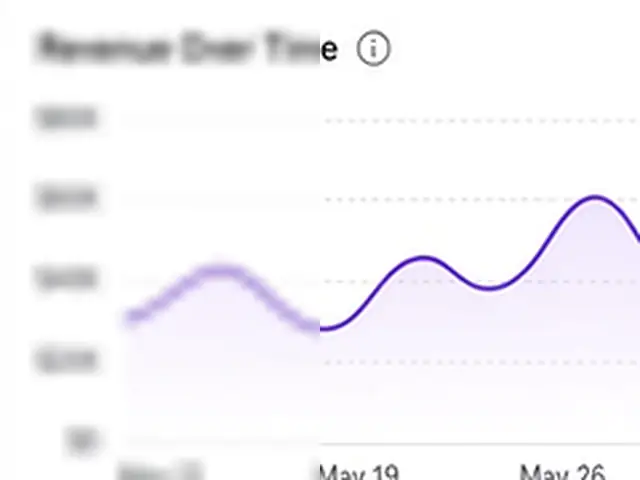 BeforeAfter 2x
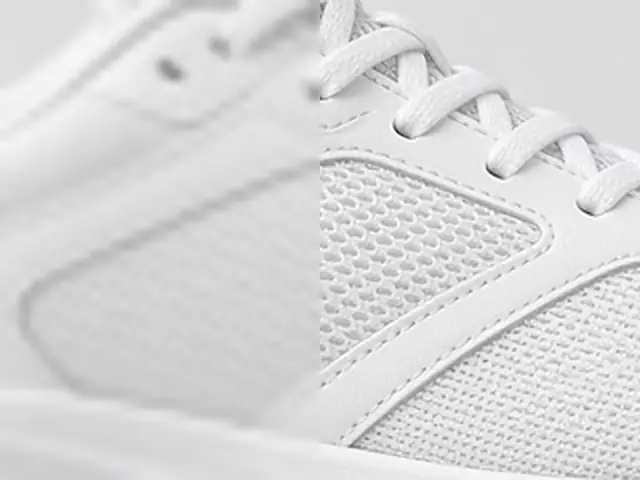 BeforeAfter 4x

Which Way Should You Zoom? Common Jobs
| Starting image | Problem | Mode | Outcome |
|---|---|---|---|
| Supplier product photo, ~800 px | Too small for a sharp listing image | Zoom In 4x | ~3200 px to crop and resize from |
| 1024 × 1024 AI-generated image | Soft as a wallpaper or print preview | Zoom In 2x or 4x | 2048 or 4096 px square |
| 4K screenshot, several MB | Too heavy for a doc, ticket or CMS | Shrink 50% + WebP | A much lighter file, same proportions |
| Product shot touching the frame edges | No room for a clean layout or badge | AI Zoom Out 1.5x | Same ratio, more backdrop around the item |
| Icon or banner too big for its slot | Needs an exact size | Shrink to custom px | Exact dimensions |
The pixel figures are simple math (2x doubles width and height). How good the result looks depends on the source.
Zoom In on Screenshots and Text
Screenshots look fine at their native size and fall apart the moment you place them in a slide, a printed manual or a blog post at a larger width. Text gets fuzzy, thin UI lines vanish, and small icons turn into blobs.
Enlarging with AI keeps letter edges crisp and lines straight, because the model has learned what type and interface elements look like up close. A screenshot taken on a small laptop screen can be doubled for a presentation without the text looking smudged.
A few things help:
- Capture at native resolution. On a Mac or a high-DPI Windows display, the system screenshot is already 2x; zoom only if you need more.
- Save as PNG before and after. JPG compression adds gray fringes around text that the AI will dutifully enlarge.
- Don't rely on it to read what was never legible. If text in the original is a one-pixel smear, the result will be a cleaner-looking guess, not the real words.
Zoom Product Images for Your Store
Online marketplaces and store themes typically want large, sharp main images, and the photos suppliers send are often a fraction of that. A product image zoomed 4x gives you enough resolution for shoppers to hover and inspect stitching, labels or finishes.
Zoom past your target, then shrink to it. If a store wants 2000 px and your photo is 900 px, zoom in 4x to about 3600 px, then switch to Shrink and set exactly 2000 px. The downscale tightens edges and usually looks crisper than a 2x result that ends just short of the target.
Before uploading product images, check:
- Focus and lighting first. Enlarging a dim or out-of-focus photo makes those problems bigger too.
- Clean backgrounds zoom best. White or plain studio backdrops come out cleaner than cluttered tables.
- Printed text on packaging. Large type holds up well; very small ingredient lists may stay soft.
- Need a square or 4:5 frame? That's a shape change. Use uncrop your image rather than zooming.
Zoom Out Graphics and Assets
Not every asset needs to be bigger. Design files, exports and screenshots often arrive far larger than where they'll be used.
Shrink handles the routine work. Bring a 3000-pixel hero graphic down to the 1600 pixels your layout displays, or cut a folder of screenshots to 50% before they go into documentation. It runs on your device with no upload, which matters when screenshots show dashboards, customer data or unreleased designs. There's no daily cap, so you can work through a whole batch one file at a time.
AI Zoom Out helps when an object is jammed against the edge of the frame: a mug photo with no space for a sale badge, or an AI render where the character's hat is cut off. The tool places the image in the middle of a larger canvas and fills the border to match the backdrop, keeping the original shape. Plain or gradient backgrounds give the cleanest results; UI and text at the edges don't continue well, so shrink those instead.
FAQs About Image Zoomers
Will text in a zoomed screenshot stay sharp?
Text that was readable in the original usually comes out cleaner after AI enlargement. Save screenshots as PNG for the best result. Text that was already unreadable can't be recovered.
How large should product images be for an online store?
Check each marketplace's own image guidelines before you upload; larger images also help hover-zoom. Enlarge 2x or 4x, then shrink to the exact size requested.
Are transparent PNGs supported?
Yes, as long as you download a format that supports transparency. When you shrink an image, PNG and WebP keep the transparent areas, while JPG fills them with white. When you zoom in with AI, a PNG download keeps the original transparency, and a JPG comes out on a white background. With AI Zoom Out, the transparent parts of your original stay transparent, but the newly added area around the edges is filled in and solid. For logos and cutouts, download as PNG.
Can I zoom a batch of images at once?
Not yet. Each image is processed one at a time, and batch processing is on the roadmap. For batch resizing to fixed platform sizes today, use resize for YouTube / Instagram.
Can I zoom in on an AI-generated image?
Yes. Many AI image tools export at around 1K, which looks fine on screen but soft on a wallpaper or a print. Enlarge it 2x or 4x with AI to get more pixels to work with. AI enlarging needs an account with enough credits — guests can't use it, and the free guest AI try doesn't cover it (see Pricing). Basic enlarge and shrink stay free in your browser.
Is it free?
Basic enlarge and shrink are free and unlimited. Guests get one free AI try site-wide for AI Zoom Out (not AI Zoom In). After that, AI features use credits when you're signed in — signup includes a free credit grant; details are on Pricing. Unit prices aren't shown on the tool form.
Should I export graphics as PNG, JPG or WebP?
PNG for logos, icons, UI and anything with text or flat color. JPG for product photos where file size matters. WebP (available in Shrink) for lightweight web images.