
Photo Zoomer for Portraits and Everyday Photos
Make a face in the crowd big enough to frame, or make a portrait small enough to upload. One photo, both directions, without leaving the page. JPG, PNG, WebP and HEIC.
How to Zoom a Photo
- Upload the photo. iPhone HEIC files work. AI modes accept files up to 10MB; Shrink handles up to 20MB.
- Pick a direction. Zoom In can enlarge with AI at 2x or 4x (log in + credits). Basic enlarge and Shrink run free on your device. Zoom Out also offers AI Zoom Out at 1.5x or 2x to step the view back.
- Check the faces. Use the before/after slider on eyes, hair and skin for AI results, or read the new size and file weight after a shrink.
- Download to your computer or phone. Your photo stays loaded if you want to try the other direction.
If you only ever go one way, there are dedicated pages for that: zoom in photo for close-ups of detail, and zoom out photo for shrinking or pulling back. Working on screenshots or product shots rather than people? The image zoomer is set up for those.
Photo Zoomer Results on Real Photos
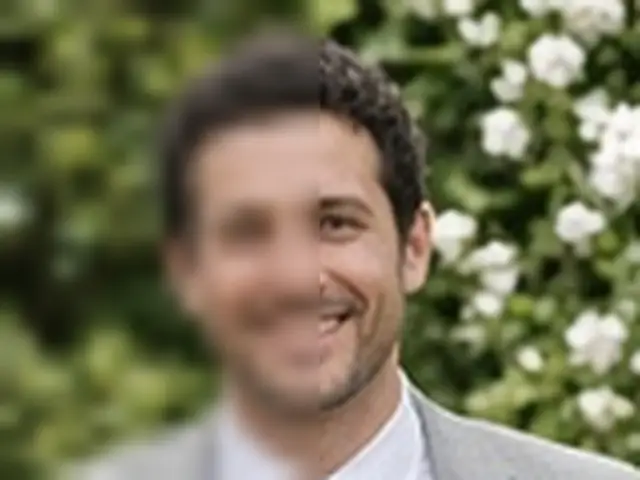 BeforeAfter 4x
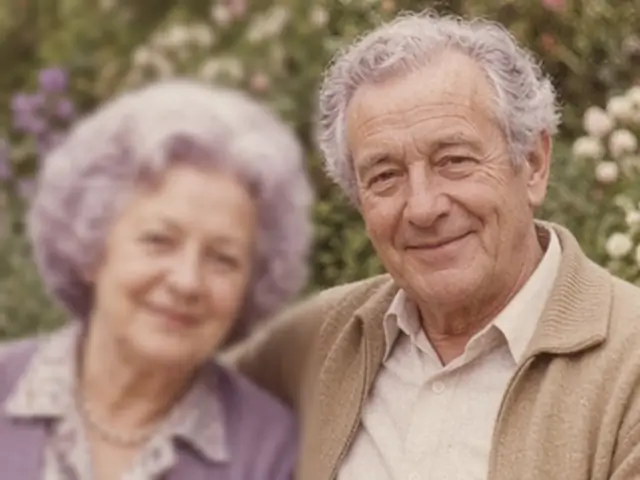 BeforeAfter 2x
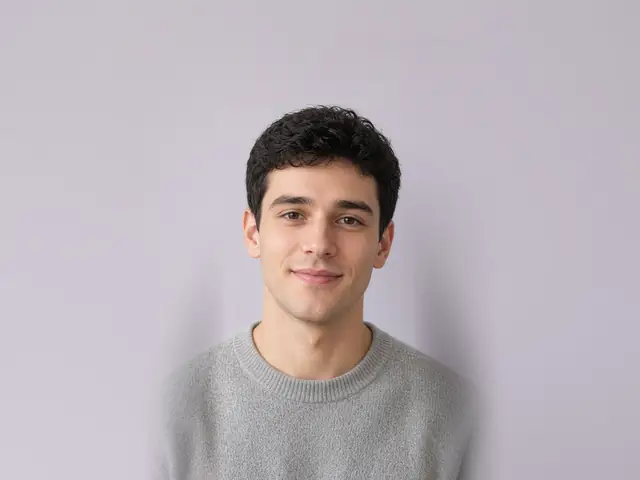 After · AI 1.5x
What to Look For in a Photo Zoomer
Five questions worth asking before you trust any tool with your photos, this one included:
- Does it go both ways? Plenty of tools only enlarge, and some only change how big the picture looks on screen. → Here you can enlarge with AI (log in + credits), use free basic enlarge or shrink, or step back with AI Zoom Out.
- Does it change the file or just the view? If your download is the same size as your upload, you used a magnifier. → Every mode here produces a new file at a new size.
- Can you check faces before saving? → A compare slider for AI results and a size readout after shrinking.
- Are the limits written down? → AI modes: up to 10MB, 2x or 4x enlargement, 1.5x or 2x step-back. Shrink: up to 20MB.
- Can you try it without an account? → Partly. Basic enlarge and shrink are free and unlimited. AI Zoom Out can use the one free guest AI try. AI Zoom In needs an account with enough credits — guests can't use it.
Screen zoom vs. a real photo zoomer
| Phone pinch / viewer "+ −" | This photo zoomer | |
|---|---|---|
| Going closer | Bigger on screen, blurrier, same file | A new 2x/4x file with rebuilt detail |
| Going farther | Smaller on screen, same file | A lighter file you can send, or a wider AI view of the same moment |
| Share or print the result? | No | Yes |
| Cost | Free | AI Zoom In: log in + credits (Pricing). Basic enlarge & shrink: free. AI Zoom Out: one free guest try |
Zoom In on Faces Without Blur
Faces are the hardest thing to enlarge. People notice when eyes look smeared or skin turns waxy, and a group shot from across the room might give each face only 40 or 50 pixels to work with.
The AI model sharpens edges where they already exist: the line of an eyelid, the boundary between hair and background, the collar of a shirt. It doesn't swap in a different face, so the person stays recognizable. On very small faces, results can look a little smoother than real skin; 2x tends to look more natural than 4x in that case.
To pull one person out of a group photo, enlarge the whole picture at 4x, then crop around the person you want. A guest who was a speck in the back row becomes a portrait you can print at wallet size or share on their birthday. Cropping first and then enlarging a tiny square gives the AI far less context and usually looks worse.
Zoom Out a Portrait for More Background
The opposite problem is just as common: a headshot cropped so tight there's no room above the hair, or a selfie where the arm-length framing cuts off shoulders.
AI Zoom Out places the portrait in the center of a canvas 1.5x or 2x larger and fills the border with matching background: more wall, more sky, more of the room. The face itself isn't redrawn, and the photo keeps its original shape. That breathing room helps when a site crops profile pictures into circles, or when you want space to add a name or caption.
Shrink is the right choice when the photo is fine but simply too large: a 5MB phone portrait headed for a profile upload with a 2MB limit, or a picture you're texting to someone on a slow connection. It runs on your device and never uploads the photo.
Tips for Phone and Old Photos
- Use the original, not a screenshot. Screenshots of photos and pictures saved from chat apps have been compressed at least once. Go back to your camera roll for the real file.
- Scan prints at 600 DPI or higher before enlarging. More starting detail always beats more zoom.
- Dust before you zoom. The AI treats specks and scratches on a scan as detail and sharpens them too. A soft brush on the print, or a quick spot-heal, saves you trouble.
- Go straight to 4x. Running a 2x result through again tends to look plasticky.
- Shrink as the last step. If a portrait needs AI work and a smaller file, do the AI part first.
FAQs About Photo Zoomers
Will enlarging a portrait distort the face?
The model sharpens features that already exist instead of generating a new face, so proportions stay the same. Very tiny faces can come out slightly smooth; if 4x looks too polished, try 2x.
How do I zoom in on one person in a group photo?
Enlarge the full group shot at 4x, then crop around that person in any photo app. You'll keep much more detail than cropping a small square first and enlarging it.
How do I make a photo smaller for a profile picture?
Choose Zoom Out, then Shrink, and type the size the site asks for (for example 400 pixels wide), or pick 50% or 25%. It's free and the photo stays on your device. If the site crops to a circle and your face fills the frame, try AI Zoom Out at 1.5x first.
Can I enlarge old family photos?
Yes. Scan the print at a high resolution, then enlarge 2x or 4x. You'll get a file big enough to reprint or show on a TV. It won't repair tears, stains or faded color.
What does "zoom photo" actually mean?
It can mean two things: magnifying a photo on screen to look closer, or creating a new file that's larger or smaller. This tool does the second, in either direction.
Is it free?
Basic enlarge and shrink are free and unlimited, with no account required. Guests get one free AI try site-wide that works with AI Zoom Out (not AI Zoom In). After that, AI features use credits once you log in — signup includes a free credit grant, and you can add more on Pricing. We don't list unit credit prices on the tool form.
What happens to my photos after I zoom them?
Shrink never uploads your photo; it's processed on your device. Photos used with AI modes are uploaded for processing and kept for 14 days, then deleted.